![[Home]](/img/mcx_wiki_banner.png)
Frequently Asked Questions about MCX
- 1. I am getting a "kernel launch timed-out" error, what is that?
- 2. When should I use the atomic version of MCX?
- 3. How do I interpret MCX's output data?
- 4. Does MCX support multiple GPUs in a single computer?
- 5. Will you consider porting MCX to MPI to run on my cluster?
- 6. What is the maximum number of media types that MCX can handle?
- 7. What is the maximum number of detectors in MCX?
- 8. My simulation created an empty history file, why is that?
1. I am getting a "kernel launch timed-out" error, what is that?
Answer: This error now shows as "unspecified error" on later versions of CUDA libraries.
This error happens only when you are using a non-dedicated GPU. A non-dedicated GPU refers to a graphics card that is used both for display and GPU computation. Because you connect your display to the card, the NVIDIA graphics driver imposes a time limit on the response time of a kernel (a function running on a GPU). This time limit is referred to as the "driver watch-dog time limit". For Linux, this limit is usually about 10 seconds; for Windows, this limit is about 2 seconds. When a kernel runs on a GPU for longer than this limit, the driver will kill the kernel for safety purposes.
If you have only one graphics card on your system and you have to use it in a non-dedicated way (i.e., connected to your monitor and for MCX simulations), MCX allows you to slice the entire simulation into chunks, so that the runtime for each chunk can be smaller than the watch-dog time limit. This is done by setting the "-r" (repetition) parameter.
For Linux/Mac, if you have a dual-GPU graphics card, you can simply run MCX without worrying about this limit, because MCX automatically selects the second GPU to perform the simulation, which is often not connected to a monitor (if this guess is wrong, you can use -G to manually select the dedicated GPU). Alternatively, if you can install a second graphics card in your machine and connect your display to one of the cards (the weaker one), this will make the other card a dedicated CUDA device. Unfortunately, on Windows, as long as you connect the monitor to one of the graphics cards, this time limit is activated for all GPUs.
For Windows users, you may modify the TdrDelay value in the registry to effectively extend this time-out limit. You can find more info in this thread. You may open File Explorer and browse to the mcx/setup/win64 folder, right-click on the file "apply_timeout_registry_fix.bat" and select "Run as administrator". You should see a command line window that reports success. Then you must perform a reboot before this setting becomes activated. If you use MCXStudio, please follow this video tutorial (Lesson 6) to apply a registry fix to enable MCX to run for more than 5 seconds on your computer. This is important!
For Linux/Unix users, you can kill the X Window System and run MCX in pure console mode (you may boot into "text" mode, or if you are already in graphics mode, you may stop it from a terminal). After killing the graphics interface, you may run MCX on a non-dedicated GPU without the watch-dog limit.
2. When should I use the atomic version of MCX?
Answer: In an MCX Monte Carlo simulation, we need to save photon weights to the global memory from many parallel threads. This may cause problems when multiple threads write to the same global memory address at the same time, which we refer to as a race condition. To avoid race conditions, CUDA provides a set of "atomic" operations, where the read-compute-write process in a thread cannot be interrupted by other threads.
In the first generation of CUDA devices made around 2008, there was a significant speed penalty for using these functions. As we have shown in Fig. 7 in our original MCX paper, the atomic version of MCX could only achieve about 75x acceleration at an optimal thread number around 500-1000, compared with 300x acceleration with the non-atomic version.
Fortunately, the high overhead in atomic operations was fixed in all NVIDIA GPUs made after 2010 (Fermi). Since 2013, we have enabled these atomic operations by default without slowing down the simulations.
3. How do I interpret MCX's output data?
Please read the output interpretation of MMC (Mesh-based Monte Carlo). The meanings of the outputs from both software packages are almost identical. The only difference is that MCX saves the output on a voxelated grid, and MMC saves on a mesh.
4. Does MCX support multiple GPUs in a single computer?
Answer: Yes, this feature has been supported since MCX v2016.4.
5. Will you consider porting MCX to MPI to run on my cluster?
Answer: There are simple alternatives, and you can find my arguments on this at this link. The support for distributed systems is similar to the support for multiple GPUs in the same box. You are recommended to use GNU Parallel to manage parallel jobs. Examples can be found here.
6. What is the maximum number of media types that MCX can handle?
Answer: Since MCX v2019.4, MCX supports continuously varying media, where a user can specify the optical properties for every voxel in the volume, depending on the format. Please see the --mediabyte flag or cfg.vol input format for mcxlab.
For all MCX releases made after 2017, a label-based volume is supported, with the limit that the total number of tissue types plus the total number of detectors must be less than 4000, limited by the size of the constant memory on an NVIDIA GPU.
For MCX releases made before 2017, the maximum number of tissue types is 128.
7. What is the maximum number of detectors in MCX?
Answer: For all MCX releases made after 2017, the total number of tissue types plus the total number of detectors must be less than 4000, limited by the size of the constant memory on an NVIDIA GPU.
For example, if one uses a volume containing 5 tissue types, the maximum detector number is 4000-5=3995.
8. My simulation created an empty history file, why is that?
Answer: This is typically caused by detector position offset due to an incorrectly assumed coordinate system origin.
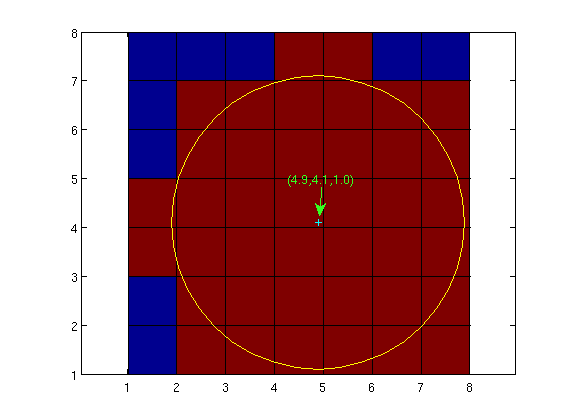
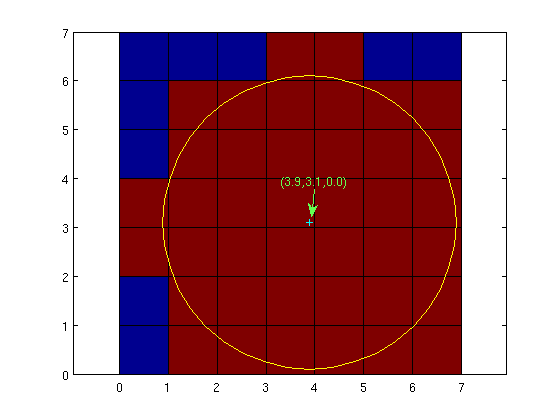
In MCX, the default coordinate system is the MATLAB volume index (in {x,y,z} float triplet, all starting from 1.0). As a result, the origin of the volume (the corner of the diagonal direction of the first voxel) is (1,1,1) instead of (0,0,0). If you want to use (0,0,0) as the origin, you can do so by adding "--srcfrom0 1" to the command line. The following two figures (the bottom face of an 8x8x8 volume) show the differences between these two options:
| default or --srcfrom0 0 | --srcfrom0 1 |
 |  |
You can find more discussion here:
http://groups.google.com/group/mcx-users/browse_thread/thread/e5e0140d7e73e4bf?hl=en
A photon detection event only happens when a photon escapes from the target to the exterior space. This includes two situations:
- a photon moving from a non-zero voxel to a 0-voxel
- a photon moving beyond the bounding box of the volume
Thus, in order for a detector to capture an escaped photon, it MUST be located on the interface between the zero/non-zero voxels, or on the bounding box (within the detector radius). This makes it very sensitive to the coordinate origin issue above when the detector radius is 1mm or less, because if you mistakenly offset your detector by 1mm, the detector will capture nothing, thus giving you an empty history file.
To help with better use of this feature, starting from MCX 0.5.2, we allow users to specify coordinate origin types in the input file. The 3rd row of an input file now accommodates a 4th input, specifying the srcfrom0 flag. For example
30.0 30.0 0.0 1sets the srcfrom0 flag to 1 (the last integer). As a result, the volume origin is set to (0,0,0). This is equivalent to
31.0 31.0 1.0 0or
31.0 31.0 1.0This setting will be effective for both source and detector positions.